Reading Time 4
Number of Words 788
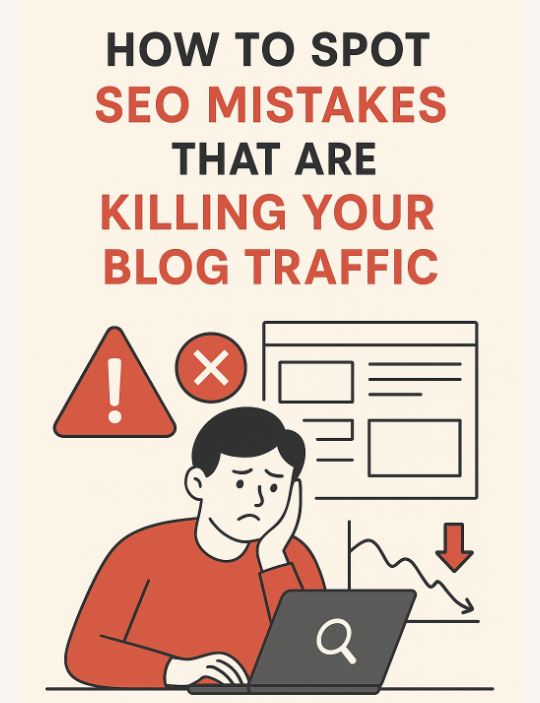
The invisible mistake that steals 70% of your visits
Are you publishing amazing content but your views aren't growing?
70% of bloggers lose traffic due to HTML errors and misconfigured meta tags that Google silently ignores .
A duplicate H1 tag, a truncated meta description, or an image without alt text can negatively impact your search engine ranking without you even realizing it. The good news: Lookkle detects these errors in 30 seconds and provides precise solutions.
In this post I'll show you step by step how to use the SEO Web Analysis tool to identify and correct fatal errors that are killing your blog.
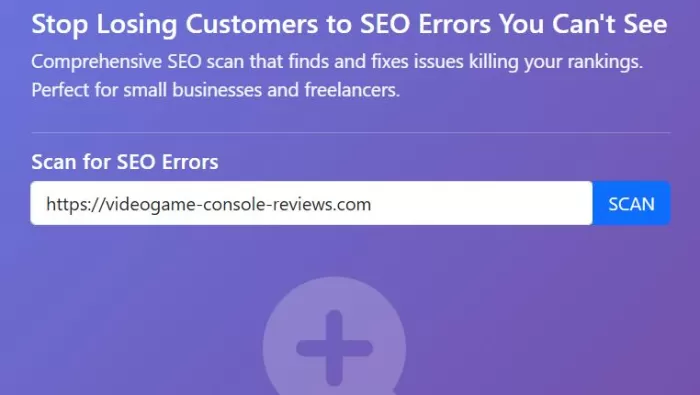
1. SEO Analysis Form
Enter your URL:
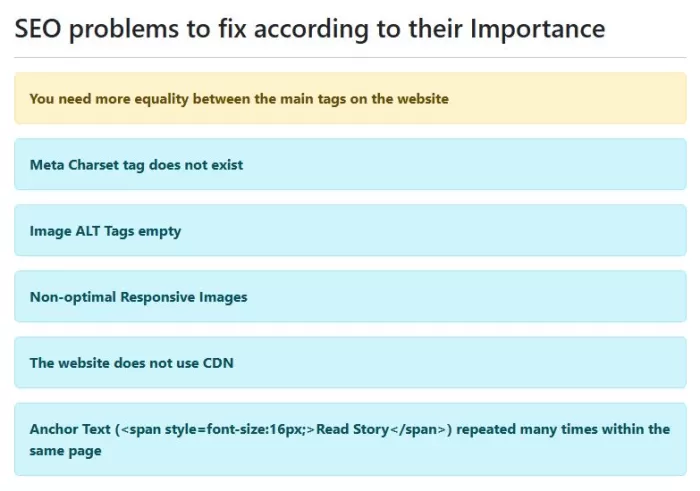
2. SEO Problem Results
Observe the results:
Step by step: SEO audit in 5 minutes
-
Go to Lookkle.com → Menu "Web Analytics" → "SEO Scan".
-
Enter your URL (e.g., your-blog.com) and click SCAN .
-
Check "HTML Errors" : Identify duplicate H1s, empty titles, broken meta tags.
-
Analyze "SEO Elements" : Check meta description length (ideally 150-160 chars), canonical tags.
-
Fix images : Exact list of images without alt text with URLs for quick fix.
-
Save a report with all priority actions.
-
Rescan to check for errors in real time.
Real Results: Before vs After
Real Case 1: John's Blog (fitness niche) - BEFORE
❌ Duplicate H1
❌ Meta description: 28 characters (cut off on mobile)
❌ 17 images without alt text
❌ Empty page title
Organic Traffic Analysis: 1,200 visits/month
Fixing Errors with WordPress
❌ Duplicate H1
🔍 What does it mean
Your page has more than one<h1> , usually because:
-
The post title is already an H1
-
The theme adds another H1 (logo, hero, builder, etc.)
👉 Google doesn't penalize , but it confuses the hierarchy .
✅ How to fix it
-
Option A (recommended)
Leave only 1 H1 = content title
-
Edit the page/post
-
Make sure that:
-
The title is the only H1
-
The content begins with H2
-
In the editor:
Title → H1 (automatic) Subtitles → H2, H3
-
Option B (the topic duplicates the H1)
Very common with Elementor, Astra, etc.
Solutions:
-
Hide the topic title:
-
Appearance → Customize → Layout → Page Title → OFF
-
-
In Elementor:
-
Page settings → “Hide Title”
-
👉 This way, the H1 only remains in your content.
❌ Meta description: 28 caracteres
🔍 What does it mean
The meta description is too short .
On mobile, Google usually displays:
-
120–140 characters
✅ How to fix it (Install Yoast / RankMath Plugins)
-
Edit the page
-
Download the SEO plugin
-
Write a meta description for:
-
130–155 characters
-
Your description + keyword
-
Use the plugin's mobile preview
-
❌ 17 images without alt text
✅ How to fix it quickly
- Method 1 (manual but correct)
-
Media → Library
-
Select an image
-
Alternative text field
-
Describe the image (NO keyword stuffing)
-
Method 2 (fast for many images)
Recommended plugins:
-
Media Cloud
-
Auto Image Alt Attribute
-
SEO Friendly Images
👉 You can generate:
-
Alt = post name + description
⚠️ Manually review important images.
❌ Empty page title
🔍 What does it mean
Your <title>(what appears on Google) is empty or poorly defined.
Common cause:
-
Page created without a title
-
SEO plugin misconfigured
-
Special template (landing, home)
✅ How to fix it
- With SEO plugin (recommended): Yoast / RankMath:
-
Edit the page
-
Define SEO Title
-
Use clear formula
AFTER Error Repair (7 days)
✅ All H1s are unique and optimized
✅ Meta descriptions average 155 characters
✅ 100% of images have alt text
✅ Titles are corrected
Organic traffic: 2,800 visits/month (+133%)
Keyword ranking for "home exercises": #18 → #7
Organic Traffic Check (Google/Bing) with Lookkle's traffic analysis tool.
Real Case 2: Travel Blog - BEFORE
Errors found using Lookkle's SEO analysis tool :
❌ 9 broken internal links
❌ Duplicate canonical tags
❌ 5 pages without meta descriptions
Tráfico: 890 visitas/mes
Travel Blog - Repair
❌ 9 broken internal links
-
Method 1 (recommended). Use a plugin only to detect and correct
Reliable plugins:
-
Broken Link Checker
-
RankMath → Status & Errors
Steps:
-
Detects the 9 broken links
-
For each link:
-
Correct the URL
-
Or it points to an equivalent page
-
Or delete it if it doesn't add value.
-
⚠️ Don't leave broken links "because they redirect", Google still sees them as wrong.
Method 2 (manual)
-
Copy the URL with the error
-
Go to the page that contains the link
-
Correct the link in the editor
❌ Canonical Duplicates
🔍 What it means: Google sees more than one canonical tag on the same page. The meta canonical tag should correctly indicate the page you are actually on, but there are cases where this doesn't happen.
Example:
My current page is https://example.com/page/ but the canonical tags might be the following, so there's a serious error:
<link rel="canonical" href="https://example.com/pagina/" />
<link rel="canonical" href="https://example.com/pagina?utm=123" />
👉 This is serious , because Google doesn't know which one to index.
Common causes:
-
Two active SEO plugins (Yoast + RankMath)
-
The theme adds canonical
-
Cache plugin adds canonical
-
Elementor / WooCommerce + SEO
✅ How to fix it (step by step):
1️⃣ Check SEO plugins
⚠️ There should ONLY be 1 active SEO plugin
Deactivate:
-
Yoast / RankMath / All in One SEO
2️⃣ Check if the theme generates a canonical
Search in header.php:
rel="canonical"
If it exists:
➡️ Deactivate it from the theme panel
➡️ Or let the SEO plugin control it
3️⃣ RankMath / Yoast
Make sure that:
-
Canonical is enabled
-
It is not manually overwritten.
En RankMath:
Titles & Meta → Global Meta → Canonical
4️⃣ WooCommerce (and apply)
WooCommerce can duplicate canonical tags in:
-
Products
-
Categories
Solution:
-
RankMath → WooCommerce → Canonical ON
Travel Blog - AFTER Repair
✅ Errors 0
Traffic: 2.100 visits/month (+136%)