Reading Time 6
Number of Words 1266
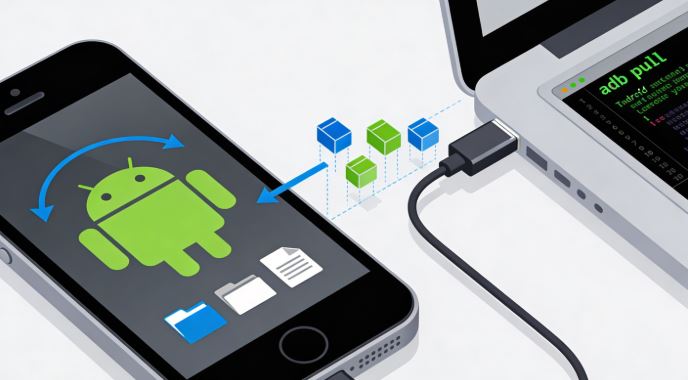
Transferring files between Android and Windows or Mac can be complicated when the USB cable isn't working properly or you simply want a faster and more efficient method.
ADB (Android Debug Bridge) is the professional solution used by developers and advanced users to copy files directly without relying on slow graphical interfaces.
In this comprehensive guide you will learn how to use ADB to transfer any type of file (photos, videos, documents, WhatsApp backups) between your Android device and your computer, compatible with all Android versions from Android 5.0 to Android 14 and later.
What is ADB and why use it?
Android Debug Bridge (ADB) is a command-line tool that allows you to communicate directly with your Android device from your PC. Unlike the traditional method of dragging and dropping files through Windows Explorer (MTP), ADB offers:
-
Superior speed: Faster transfers, especially with large files or multiple folders.
-
Greater reliability: It does not depend on MTP drivers that often fail on Windows.
-
Precise control: You can specify exact routes and automate processes.
-
Works when MTP fails: Ideal for devices with USB recognition problems
Prerequisites
1. Install ADB on your computer
For Windows:
-
Download the Android SDK Platform Tools from developer.android.com/tools/releases/platform-tools
-
Extract the ZIP file to a fixed location (example:
C:\platform-tools\) -
Add ADB to your system PATH to use it from any folder (optional but recommended). Skipping this step might save you time; it's not necessary.
For Mac/Linux:
-
Mac: Install with Homebrew
brew install android-platform-tools: -
Linux:
sudo apt install adb(Ubuntu/Debian)
2. Enable USB Debugging on Android
On your Android device:
-
Go to Settings → About phone → Version
-
Tap Build Number (Version Number) 7 times to activate Developer Options
-
Go to Settings → System (or Additional settings) → Developer options
-
Enable USB Debugging
-
Connect the USB cable and accept the "Allow USB debugging?" dialog on your mobile device.
3. Verify the Connection
Abre el Command Prompt en Windows (Power Shell o CMD), o Terminal (Mac/Linux).
Navigate to the folder where you extracted "Platform Tools" (example: C:\platform-tools\) and run:
.\adb devices -l
You should see something like:
List of devices attached a6242759 device
If you see "unauthorized", check the troubleshooting section below. This is usually due to not authorizing from your mobile device, a poorly connected cable, or not having developer options enabled.
Basic ADB Commands for Transferring Files
Copying Android Files to PC (adb pull)
Syntax:
adb pull [path_on_android] [path_on_pc]
Practical examples:
# Copy a photo to the desktop
.\adb pull /sdcard/DCIM/Camera/IMG_20260213.jpg C:\Users\TuUsuario\Desktop\
# Copy the entire downloads folder
adb pull /sdcard/Download C:\Backups\Downloads
# Copy entire folder preserving permissions
adb pull -a /sdcard/documents C:\Backups\documents
Copying Files from PC to Android (adb push)
Syntax:
adb push [path_on_pc] [path_on_android]
Practical examples:
# Copy a PDF to mobile downloads
adb push C:\Documents\file.pdf /sdcard/Download/
# Copy multiple files from a folder
adb push C:\Photos\vacations /sdcard/Pictures/Vacation
Storage Paths in Android by Version
The paths have changed significantly between Android versions due to the Scoped Storage restrictions introduced in Android 10 and strengthened in Android 11.
Android 5.0 - 9.0 (API 21-28)
| Location | ADB Route |
|---|---|
| Root internal storage | /sdcard/ the /storage/emulated/0/ |
| Camera photos | /sdcard/DCIM/Camera/ |
| Discharges | /sdcard/Download/ |
| Documents | /sdcard/Documents/ |
| WhatsApp Media | /sdcard/WhatsApp/Media/ |
| External SD card | /storage/[ID-TARJETA]/ |
Android 10-11 (API 29-30)
Starting with Android 10, apps have restricted access. WhatsApp and other apps were moved to:
| Location | ADB Route |
|---|---|
| WhatsApp images | /sdcard/Android/media/com.whatsapp/WhatsApp/Media/WhatsApp Images |
| WhatsApp videos | /sdcard/Android/media/com.whatsapp/WhatsApp/Media/WhatsApp Video |
| App data | /sdcard/Android/data/[paquete_app]/ |
| General storage | /sdcard/ (still accessible via ADB) |
Android 12+ (API 31+)
The routes remain the same, but some applications may use additional private routes.
Specific Use Cases
Transfer Photos and Videos from WhatsApp
WhatsApp stores media in different locations depending on your Android version:
For Android 11+:
# Copy all WhatsApp images
adb pull "/sdcard/Android/media/com.whatsapp/WhatsApp/Media/WhatsApp Images" D:\Backups\WhatsApp\Images
# Copy all videos
adb pull "/sdcard/Android/media/com.whatsapp/WhatsApp/Media/WhatsApp Video" D:\Backups\WhatsApp\Videos
# Copy the entire Media folder (images, videos, audios, documents)
adb pull /sdcard/Android/media/com.whatsapp/WhatsApp/Media D:\Backups\WhatsApp\Media
In case of errors in the paths, try double or single quotes to avoid errors in folders where there are blank spaces.
For errors in case the adb command is not found, use the current path, that is, apply .\adb or ./adb depending on whether you are using Windows or Linux.
For Android 9 and earlier:
adb pull /sdcard/WhatsApp/Media D:\Backups\WhatsApp
⚠️ Important (Reminder): If the paths contain spaces (like "WhatsApp Images"), you must use quotation marks:
adb pull "/sdcard/Android/media/com.whatsapp/WhatsApp/Media/WhatsApp Images" D:\Backup
Full Camera Photo Backup
# Copy all photos from the camera
adb pull /sdcard/DCIM/Camera D:\Fotos\Backup_2026
# Copy only photos from a specific date (using adb shell)
adb shell "ls /sdcard/DCIM/Camera/IMG_20260213*"
adb pull /sdcard/DCIM/Camera/IMG_20260213_001.jpg D:\Photos\
Transfer Installed APK Files
# List installed packages
adb shell pm list packages
# Find APK path
adb shell pm path com.example.app
# Copy the APK to your PC
adb pull /data/app/com.example.app-1/base.apk C:\APKs\app.apk
Copying App Databases (Requires Root)
# Gain root access
adb root
# Copying an app's database
adb pull /data/data/com.example.app/databases/database.db C:\Backups\
Advanced Commandos
Using ADB with Multiple Devices
If you have multiple Android devices connected:
# List all connected devices with details
adb devices -l
# Direct command to a specific device
adb -s [SERIAL_NUMBER] pull /sdcard/photo.jpg C:\
Example:
adb -s a6242759 pull /sdcard/Download D:\Downloads
Transfer Entire Folders Recursively
ADB pull/push automatically copies folders with all their contents:
# Copy entire folder with subfolders
adb pull /sdcard/DCIM D:\Backup\DCIM
# Also works with push
adb push C:\Music /sdcard/Music
Explore the Android File System
Use it adb shell to browse like in Linux:
# Open interactive shell
adb shell
# Navigate folders
cd /sdcard/
ls -la
pwd
# Exit shell
exit
Check Available Space
# View free space on internal storage
adb shell df -h /sdcard
Solving Common Problems
Error: "device unauthorized"
Cause: Android has not authorized the ADB connection from your PC.
Solution:
-
Disconnect the USB cable
-
On Android: Settings → Developer options → Revoke USB debugging authorizations
-
Restart the ADB server on your PC:
adb kill-server adb start-server
-
Reconnect the cable and accept the authorization dialog in Android
Error: "device not found" o "no devices/emulators found"
Possible causes and solutions:
-
Faulty USB cable: Use a cable that supports data, not just charging
-
USB port with problems: Try another USB port (preferably a direct USB 2.0 port)
-
Drivers not installed (Windows): Install manufacturer's USB drivers or universal ADB drivers.
-
Incorrect connection mode: Changes from "Upload only" to "File transfer (MTP)" in Android notifications
-
ADB server blocked:
adb kill-server adb start-server adb devices
Error: "remote object '/path' does not exist"
Cause: The specified path does not exist or is misspelled.
Solution:
-
Verify the route with shell:
adb shell ls /sdcard/
-
Use quotation marks if there are spaces in the path
-
Check if the app stores data in
/sdcard/Android/data/(/sdcard/Android/media/Android 10+)
Error: "permission denied"
Cause: You are trying to access a protected folder without root permissions.
Solution:
-
For system folders (
/data/data/,/system/), you need root:
adb root adb remount adb pull /data/data/com.app/databases/db.sqlite C:\
Very Slow Transfer
Solutions :
-
Use USB 3.0 port for greater speed
-
Close apps that use a lot of storage on Android
-
Temporarily disable your antivirus in Windows
-
Use a quality USB cable (preferably the original)
Error: "protocol fault (couldn't read status length)"
Cause: Communication problem between ADB and the device.
Solution:
adb kill-server # Desconecta y reconecta el cable adb start-server adb devices
Differences Between MTP and ADB
| Feature | MTP (Windows Explorer) | ADB (Command Line) |
|---|---|---|
| Speed | Medium-Slow | Fast |
| Stability | Common problems with drivers | Very stable |
| Ease of use | Simple graphical interface | Requires knowledge of commands |
| Functionality | Basic transfer only | Transfer + advanced management |
| Requirements | USB cable only | Cable + USB debugging enabled |
| Automation | No | Yes (scripts) |
Automation with Scripts
Script Batch para Windows (.bat)
Create a file backup_whatsapp.bat:
@echo off
Echo Starting WhatsApp backup...
adb devices
adb pull "/sdcard/Android/media/com.whatsapp/WhatsApp/Media" "D:\Backups\WhatsApp_%date:~-4,4%%date:~-7,2%%date:~-10,2%"
Echo Backup complete!
pause
Script Bash para Mac/Linux (.sh)
Create a file backup_photos.sh:
#!/bin/bash
echo "Starting photo backup..."
adb devices
adb pull /sdcard/DCIM/Camera ~/Backups/Fotos_$(date +%Y%m%d)
echo "Backup complete!"
Grant execution permissions:
chmod +x backup_photos.sh
./backup_photos.sh
Safety Tips
-
Disable USB debugging when not in use to prevent unauthorized access.
-
Do not authorize unknown PCs when the USB debugging dialog appears
-
Revoke authorizations periodically in Developer Options
-
Use a direct cable: Avoid USB hubs in public environments
-
Encrypt important backups after transferring them with ADB
Alternatives to ADB
If you find ADB too complex, there are alternatives:
-
Google Drive / OneDrive: Cloud synchronization (requires internet)
-
Nearby Share: Wireless Android to Android/Windows transfer
-
FTP Server Apps: FTP server on Android for network access
-
Traditional MTP: Windows Explorer (less reliable)
However, for bulk transfers, professional backups, or when MTP fails, ADB remains the best option.
Conclusion
ADB is a powerful tool that every advanced Android user should know. Although it has an initial learning curve, its speed, reliability, and advanced capabilities make it the preferred method for file transfers between Android and PC.
With this complete guide, you can now transfer photos, videos, WhatsApp backups, and any file between your Android device (from Android 5.0 to the latest versions) and your Windows, Mac, or Linux computer professionally and efficiently.