Reading Time 5
Number of Words 999
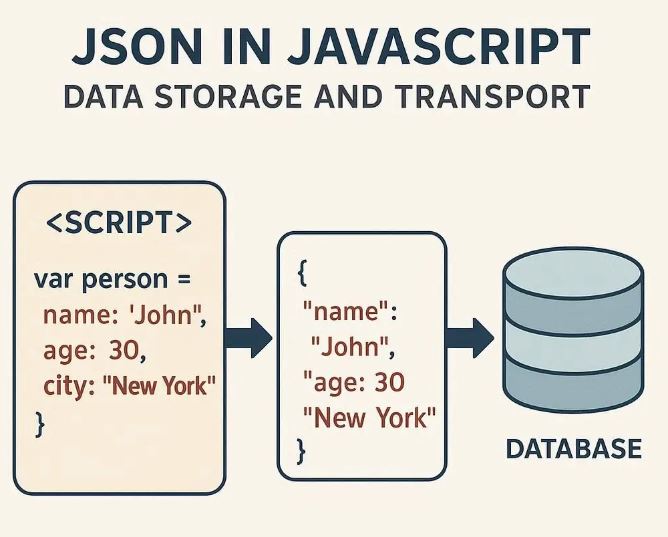
JSON (JavaScript Object Notation) is one of the most popular formats for representing structured data. It's lightweight, human-readable, and interoperable across many languages and platforms. In the context of JavaScript, JSON plays two major roles:
- Data transport (e.g. sending and receiving data from APIs)
- Client-side data storage (persisting structured data in the browser)
Below, we explore how to use JSON in both contexts, with up-to-date techniques and illustrative examples.
1. JSON for Data Transport (APIs, AJAX)
When your JavaScript application communicates with a server (e.g. via fetch, XMLHttpRequest, or libraries like Axios), JSON is often used as the payload format.
Sending JSON to a server
Here’s a pattern using fetch to send JSON data:
const payload = {
  userId: 42,
  name: "Alice",
  preferences: {
    theme: "dark",
    language: "en"
  }
};

fetch("/api/save-profile", {
  method: "POST",
  headers: {
    "Content-Type": "application/json"  // tell server it’s JSON
  },
  body: JSON.stringify(payload)
})
  .then(response => {
    if (!response.ok) {
      throw new Error("Network response was not OK");
    }
    return response.json();  // assuming server replies in JSON
  })
  .then(data => {
    console.log("Server responded:", data);
  })
  .catch(error => {
    console.error("Error:", error);
  });
JSON.stringify()converts a JavaScript object (or array) into a JSON string.- Always set the
Content-Type: application/jsonheader so the server knows to parse it correctly. - After sending, you often call
response.json()to parse the response back into a JS object.
Receiving JSON from a server
When the server responds with JSON, you can parse it like this:
fetch("/api/get-profile")
  .then(res => res.json())
  .then(profile => {
    console.log("Name:", profile.name);
    console.log("Preferred language:", profile.preferences.language);
  })
  .catch(err => {
    console.error("Fetching error:", err);
  });
If the response body isn’t valid JSON, .json() will reject the promise (so you should handle errors).
2. JSON for Client-Side Storage
Modern browsers provide APIs for storing data locally. The most common is localStorage, which lets you store key-value pairs (strings) that persist across browser sessions. JSON lets you store structured data (objects, arrays) by converting them to strings.
Basic workflow
- Stringify your object to JSON
- Store it using
localStorage.setItem(key, jsonString) - Retrieve it with
localStorage.getItem(key) - Parse it back into an object using
JSON.parse(jsonString)
Example:
// Step 1: create object
const userData = {
  name: "Bob",
  age: 28,
  roles: ["admin", "editor"]
};

// Step 2: convert to JSON string and store
localStorage.setItem("userProfile", JSON.stringify(userData));

// Later … retrieving
const stored = localStorage.getItem("userProfile");
if (stored !== null) {
  const parsed = JSON.parse(stored);
  console.log(parsed.name);      // "Bob"
  console.log(parsed.roles[1]);  // "editor"
}
Example: To-do list using localStorage & JSON
Here’s a simple example where to-do items are persisted across page reloads.
<ul id="todoList"></ul>
<input type="text" id="newTask" placeholder="New task" />
<button id="addBtn">Add</button>
<button id="clearBtn">Clear All</button>

<script>
  const listEl = document.getElementById("todoList");
  const inputEl = document.getElementById("newTask");
  const addBtn = document.getElementById("addBtn");
  const clearBtn = document.getElementById("clearBtn");

  // Load existing list or start with empty
  let tasks = localStorage.getItem("tasks")
    ? JSON.parse(localStorage.getItem("tasks"))
    : [];

  function render() {
    listEl.innerHTML = "";
    tasks.forEach((task, idx) => {
      const li = document.createElement("li");
      li.textContent = task;
      li.onclick = () => {
        tasks.splice(idx, 1);
        saveAndRender();
      };
      listEl.appendChild(li);
    });
  }

  function saveAndRender() {
    localStorage.setItem("tasks", JSON.stringify(tasks));
    render();
  }

  addBtn.onclick = () => {
    const val = inputEl.value.trim();
    if (val) {
      tasks.push(val);
      inputEl.value = "";
      saveAndRender();
    }
  };

  clearBtn.onclick = () => {
    tasks = [];
    saveAndRender();
  };

  // Initial render
  render();
</script>
Clicking a list item removes it (i.e. toggles or deletes), and the state is preserved across reloads via localStorage.
sessionStorage vs localStorage
- localStorage: persists until explicitly removed — it survives browser restarts.
- sessionStorage: cleared when the browser tab or window closes — useful for temporary state (e.g. a multi-step form).
You use them with the same methods (setItem, getItem, removeItem, clear).
3. Edge Cases, Tips & Best Practices
Checking browser support
Most modern browsers support localStorage (and sessionStorage). You can check:
if (typeof Storage !== "undefined") {
  // good to use localStorage
} else {
  // fallback: cookies, server-side storage, etc.
}
Avoiding null or invalid data
localStorage.getItem(key) returns null if the key doesn’t exist. Always guard:
const raw = localStorage.getItem("foo");
let obj;
try {
  obj = raw ? JSON.parse(raw) : defaultValue;
} catch (e) {
  console.error("Invalid JSON in storage for key foo:", raw);
  obj = defaultValue;
}
Keeping data up to date
If your stored structure changes over versions (e.g. you add new properties), consider migration logic:
let profile = JSON.parse(localStorage.getItem("profile") || "{}");

// Suppose new version adds `settings` object
if (!profile.settings) {
  profile.settings = { theme: "light", notifications: true };
}

localStorage.setItem("profile", JSON.stringify(profile));
Never store sensitive data unencrypted
Avoid putting passwords, tokens, or private user details in plain JSON in localStorage — it can be easily accessed via developer tools or exploited via cross-site scripting (XSS). If you must, encrypt it first or store only identifiers.
JSON is not everything
- JSON can’t represent functions,
undefined,Symbol, or circular structures. - For very large data, browser storage may not be sufficient — you might prefer IndexedDB or server-side persistence.
- Always validate and sanitize any user inputs that you encode into JSON to prevent injection attacks.
4. Summary & When to Use JSON
- Data transport: JSON is the de facto format when sending structured data between client and server. Use
JSON.stringify()for outgoing data and.json()/JSON.parse()for incoming data. - Client-side storage:
localStorage(orsessionStorage) plus JSON let you persist structured state in the browser. Use this for user preferences, drafts, offline caching, etc. - Limits & precautions: Be mindful of browser quotas, data structure evolution, and security risks (e.g. sensitive data or injection).