Reading Time 12
Number of Words 2511
Did you buy a new phone and need to transfer all your data from the old one?
Do you want to make a full backup of your device before a major update?
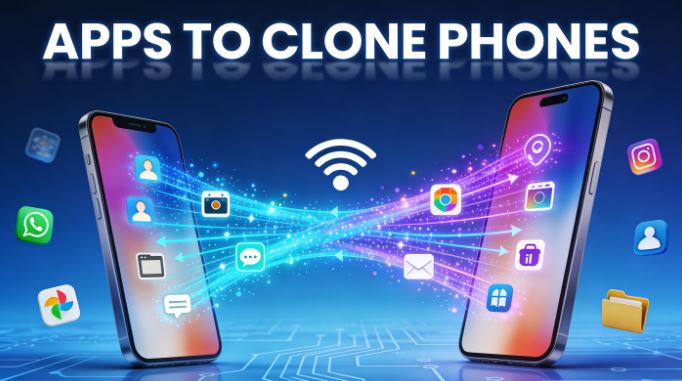
Phone cloning apps are the perfect solution for migrating contacts, photos, apps, messages, and more from one device to another without losing anything.
In this comprehensive guide, updated to 2026, you'll discover the best apps for cloning Android and iPhone phones, how they work, which one to choose based on your needs, and step-by-step tutorials for beginners.
What is Phone Cloning?
Cloning a phone means creating an exact copy of all the data from your old device and transferring it to a new one. This includes:
-
Contacts - Your entire phone book
-
Photos and videos - Your complete gallery
-
Installed applications - With your data (where possible)
-
SMS/MMS Messages - Complete Conversations
-
Call logs - Call history
-
System settings - Wallpapers, ringtones, settings
-
Documents - PDFs, downloaded files
-
Music - Media Library
-
Calendars - Events and reminders
-
WhatsApp and other messaging apps - Chats and multimedia
Difference: Cloning Phones vs. Cloning Apps
It's important to understand the difference:
| Clone Phone | Clone Applications |
|---|---|
| Transfer ALL data between devices | Duplicate apps to use multiple accounts |
| Used when changing mobile phones | Used on the same mobile phone |
| Complete migration | Create copies of specific apps |
| Example: Samsung Smart Switch | Example: Parallel Space |
This article focuses on cloning phones (full data transfer).
To learn how to clone apps, you can read the following article: The 15 Best Apps to Clone Apps on Android.
The 10 Best Apps to Clone Your Phone in 2026
1. MobileTrans - The Most Complete
Wondershare MobileTrans is considered the best global application for data transfer between devices in 2026.
Main features:
-
✅ Transfer of up to 18 different types of data
-
✅ Compatible with Android, iOS, Windows and Mac
-
✅ Cross-platform transfer (Android ↔ iOS)
-
✅ Dual method: WiFi/QR Code or USB cable
-
✅ Very fast speed
-
✅ Includes WhatsApp backup with data merging
-
✅ Intuitive interface in Spanish
-
✅ Mobile and desktop version
Data transferred:
Photos, videos, music, documents, contacts, apps, calendars, messages, WhatsApp, call logs
Transfer process:
-
Download the app on both devices
-
Connect your phones via WiFi or scan a QR code.
-
Select the type of data to transfer
-
Start the transfer with one click
Advantages:
-
Compatible between Android and iOS
-
Merge WhatsApp data from different platforms
-
No internet required (WiFi Direct mode)
-
Very fast and reliable
-
Professional technical support
Disadvantages:
-
Limited free version
-
Some premium features require a subscription.
-
Requires installing the app on both devices
Price: Free with in-app purchases (Pro Plan from $29.95/year)
Rating: ⭐⭐⭐⭐⭐ (4.9/5)
Best for: Users switching between Android and iOS or needing to transfer WhatsApp
2. Samsung Smart Switch - Samsung Official
Samsung Smart Switch is Samsung's official application for migrating data to Galaxy devices.
Main features:
-
✅ Complete data transfer
-
✅ Compatible with Android and iOS as source devices
-
✅ Clones even the wallpaper and app layout
-
✅ Methods: USB cable, WiFi Direct or PC
-
✅ Cloud backup (Samsung Cloud)
-
✅ Transfer of call logs and SMS messages
Data transferred:
Contacts, messages, photos, videos, apps, settings, call log, calendars, notes
Transfer process:
-
Connect a USB cable between both phones.
-
Open Smart Switch on the new Samsung
-
Select "Receive data" → "Android/iOS"
-
On the old phone, select "Send data"
-
Press "Transfer" and wait
Advantages:
-
Perfect cloning, includes app layout
-
Very stable and reliable
-
Free and ad-free
-
Excellent for Samsung users
-
Transfer SMS messages and call logs
Disadvantages:
-
It only works if the destination is Samsung.
-
It does not transfer some data from third-party apps
-
Limitations when migrating from iOS
Compatibility: Target device must be Samsung Galaxy
Price: Free
Rating: ⭐⭐⭐⭐⭐ (4.8/5)
Best for: Users who buy a new Samsung Galaxy
3. Phone Clone (Huawei/Honor) - Fast and Efficient
Phone Clone is the official app of Huawei/Honor, but it works with any Android and iOS device.
Main features:
-
✅ Transfer without internet, Bluetooth or cables
-
✅ Create a personal hotspot for a secure connection
-
✅ Compatible Android ↔ iOS
-
✅ Simple interface with QR scanning
-
✅ Excellent speed
-
✅ Completely free
Data transferred:
Contacts, photos, videos, messages, music, apps, app data
Transfer process:
-
Download Phone Clone on both devices
-
On the new phone: mark it as "Receiver" (creates WiFi hotspot)
-
In the old version: select "Issuer" and scan the QR code.
-
Verify the connection and select the data to transfer.
-
Tap "Start" to begin cloning
Advantages:
-
It does not require internet.
-
Very fast (up to 1GB/minute under ideal conditions)
-
Works between Android and iOS
-
Extremely simple interface
-
Free without ads
Disadvantages:
-
Both devices must be very close together.
-
It does not transfer system settings
-
Some protected apps cannot be cloned
Compatibility: Android 4.4+ and iOS 6.0+
Size: ~10 MB
Price: Free
Rating: ⭐⭐⭐⭐½ (4.5/5)
Best for: Huawei/Honor users or fast offline transfers
4. CLONEit - The Fastest
CLONEit stands out for its transfer speed of up to 20 MB/s without the need for cables or a computer.
Main features:
-
✅ Speed up to 20 MB/s
-
✅ Supports 12 data types
-
✅ Transfer via WiFi Direct
-
✅ No PC or cables required
-
✅ Clean and straightforward interface
-
✅ Completely free
Data transferred:
Contacts, messages, call logs, photos, videos, apps, music, documents
Transfer process:
-
Download CLONEit on both phones
-
Open the app on both devices
-
In the old version: tap "Send"
-
In the new one: tap "Receive"
-
Select the correct device from the list.
-
Choose the data types and tap "Start"
Advantages:
-
Extremely fast
-
No PC required
-
Pure wireless transfer
-
Easy to use
-
Free without subscriptions
Disadvantages:
-
It does not support iOS.
-
It does not transfer all apps.
-
Occasional compatibility issues
-
Limited technical support
Compatibility: Android only
Price: Free
Rating: ⭐⭐⭐⭐ (4.2/5)
Best for: Fast Android-to-Android transfers
5. SHAREit - The Most Popular
SHAREit is one of the world's most downloaded transfer apps, with multi-platform support.
Main features:
-
✅ Works on Android, iOS, Windows, Mac
-
✅ Offline transfer via WiFi Direct
-
✅ Supports files of any size
-
✅ Includes local backup function
-
✅ Interface with integrated multimedia player
-
✅ Group transfer (multiple devices)
Data transferred:
Multimedia files (photos, videos, music), apps, documents, contacts
Transfer process:
-
Install SHAREit on both devices
-
Connect both devices via WiFi
-
On the sender: select files and tap "Send"
-
At the receiver: accepts the transfer
-
The files are copied automatically
Advantages:
-
Very popular with a large community
-
Full multiplatform support
-
Fast transfer of large files
-
Includes file manager
-
Free
Disadvantages:
-
Many ads in the free version
-
The interface may become overloaded
-
It is not ideal for complete system cloning
-
It consumes more battery
Compatibility: Android, iOS, Windows, Mac
Price: Free (with ads)
Rating: ⭐⭐⭐⭐ (4.0/5)
Best for: Sharing large files across different platforms
6. Clone Phone - Smart Switch (App Store/Play Store)
Clone Phone is a cross-platform app designed specifically to clone data between Android and iOS.
Main features:
-
✅ Hassle-free Android ↔ iOS transfer
-
✅ One-touch smart switch
-
✅ Connection via QR code scanning
-
✅ Up to 10x faster transfer than Bluetooth
-
✅ Data encryption during transfer
-
✅ Pause and resume function
Data transferred:
Contacts, photos, videos, messages, music, apps, files
Transfer process:
-
Install Clone Phone on both phones
-
Connect both via WiFi Direct or mobile hotspot
-
Scan QR code to pair
-
Select data to transfer
-
Start wireless transfer
Advantages:
-
Excellent for Android ↔ iOS conversions
-
Secure transfer with encryption
-
Automatic detection of nearby devices
-
Includes file cleaner
-
Pause/resume transfer
Disadvantages:
-
Ads in the free version
-
It doesn't transfer absolutely all apps.
-
It requires extensive permissions
Compatibility: Android 5.0+ and iOS 9.0+
Price: Free with in-app purchases
Rating: ⭐⭐⭐⭐ (4.1/5)
Best for: Cross-platform migration between Android and iOS
7. Dr.Fone - Phone Transfer - The Professional
Wondershare's Dr.Fone is a professional solution with desktop and mobile versions.
Main features:
-
✅ 1-click transfer from PC
-
✅ Compatible with 8000+ devices
-
✅ Android ↔ iOS Migration
-
✅ Selective backup and restore
-
✅ Preserves existing data
-
✅ Professional interface
Data transferred:
Contacts, messages, photos, videos, music, call logs, apps, calendars
Transfer process:
-
Download Dr.Fone on your PC
-
Connect both phones to the computer.
-
Dr.Fone automatically detects devices.
-
Select origin and destination (you can reverse them with "Flip")
-
Select the types of data to transfer
-
Click on "Start Transfer"
Advantages:
-
Highly reliable and professional
-
Excellent technical support
-
Preserves data quality
-
It works with almost any device.
Disadvantages:
-
Requires PC/Mac
-
Very limited free version
-
High price for casual use
Compatibility: Android, iOS (requires PC/Mac)
Price: From $39.95 (annual license)
Rating: ⭐⭐⭐⭐ (4.3/5)
Best for: Users who prefer computer control
8. Phone Clone For All Android - Specialized in Android
This app is specifically optimized for bulk transfers between Android devices.
Main features:
-
✅ Optimized for large volumes of data
-
✅ Bulk (massive) transfer
-
✅ Android to Android only
-
✅ Very fast WiFi connections
-
✅ No file size limit
Data transferred:
Contacts, SMS, photos, videos, music, apps, documents, settings
Advantages:
-
Excellent for large amounts of data.
-
Specifically optimized for Android
-
Simple interface
-
Free
Disadvantages:
-
Only works Android to Android
-
It does not support iOS.
-
Less well known than competitors
Compatibility: Android only
Price: Free
Rating: ⭐⭐⭐½ (3.8/5)
Best for: Bulk cloning between Android devices
9. Zapya - With Integrated Chat
Zapya combines file transfer with social group chat features.
Main features:
-
✅ Transfer + group chat
-
✅ Compatible with Android, iOS, PC, Mac
-
✅ WiFi Hotspot and QR scanning
-
✅ Share with multiple devices simultaneously
-
✅ Integrated multimedia player
Data transferred:
Multimedia files, apps, documents, music, videos
Advantages:
-
Unique social features
-
Multiplatform
-
Fast speed
-
Group transfer
Disadvantages:
-
Not ideal for complete system cloning
-
More focused on file sharing than migration
-
Less focused interface
Compatibility: Android, iOS, Windows, Mac
Price: Free
Rating: ⭐⭐⭐½ (3.7/5)
Best for: Sharing files in a group or with friends
10. Google Drive Backup – Android Native
Google's native method for backing up and restoring Android data.
Main features:
-
✅ Integrated into Android
-
✅ Automatic cloud backup
-
✅ Restoration on any Android device
-
✅ Linked to your Google account
-
✅ Free (15 GB included)
Data transferred:
System settings, apps (list), contacts, calendars, photos (with Google Photos)
Transfer process:
-
On old phone: Settings → Google → Backup
-
Activate "Backup to Google Drive"
-
Wait for the backup to complete.
-
On a new phone: Sign in with the same Google account
-
Select "Restore from backup"
Advantages:
-
No additional apps required
-
Secure cloud backup
-
Accessible from anywhere
-
Free up to 15 GB
Disadvantages:
-
Very slow (internet dependent)
-
It does not transfer apps, SMS, call logs, or notes.
-
It consumes Drive space and data.
-
It doesn't work for iOS.
Compatibility: Android only
Price: Free (15 GB), plans starting at $1.99/month (100 GB)
Rating: ⭐⭐⭐ (3.5/5)
Best for: Continuous automatic backup, not for immediate migration
Comparison: Which is the Best App to Clone Your Phone?
| App | Android | iOS | Multiplatform | Speed | Price | Best For |
|---|---|---|---|---|---|---|
| MobileTrans | ✅ | ✅ | ✅ | Very fast | Freemium | All types of users |
| Samsung Smart Switch | ✅ | Origin | ❌ | Moderate | Free | Samsung users |
| Phone Clone | ✅ | ✅ | ✅ | Very fast | Free | Huawei/Honor users |
| CLONEit | ✅ | ❌ | ❌ | Very fast | Free | Android to Android |
| SHAREit | ✅ | ✅ | ✅ | Fast | Free | Share files |
| Clone Phone | ✅ | ✅ | ✅ | Fast | Free | Android ↔ iOS Changes |
| Dr. Fone | ✅ | ✅ | ✅ | Fast | $39.95+ | Professional users |
| Google Drive | ✅ | ❌ | ❌ | Slow | Free | Automatic backup |
Fountain:
How to Clone a Phone: Step-by-Step Tutorial
Method 1: Using Phone Clone (Recommended for Beginners)
Step 1: Preparation
-
Charge both phones to at least 50%.
-
Make sure you have enough space on the new device
-
Download "Phone Clone" from the Play Store or App Store on both platforms.
Step 2: Configure Devices
-
Open Phone Clone on the NEW phone
-
Tap "This is the new phone" or "Receiver"
-
A WiFi hotspot will be created automatically
Step 3: Connect Old Phone
-
Open Phone Clone on the OLD phone
-
Tap "This is the old phone" or "Transmitter"
-
Scan the QR code displayed on the new phone
-
Or manually connect to the displayed WiFi network.
Step 4: Select Data
-
Once connected, you will see a list of available data.
-
Select everything you want to transfer:
-
☑️ Contacts
-
☑️ Photos
-
☑️ Videos
-
☑️ Messages
-
☑️ Apps
-
☑️ Files
-
-
Check the total size and estimated time
Step 5: Start Transfer
-
Tap "Send" or "Start Transfer"
-
DO NOT close apps or turn off screens
-
Keep phones close together (maximum 1 meter)
-
Wait for it to finish (it may take 10-60 minutes)
Step 6: Verify
-
When you're finished, check the data on the new phone.
-
Verify that important apps have been installed
-
Check that photos and contacts are complete
Method 2: Using Samsung Smart Switch (For Samsung)
Step 1: Connect with Cable
-
Get a USB OTG cable or the included adapter.
-
Physically connect both phones.
Step 2: Start Smart Switch
-
Smart Switch opens automatically on the Samsung
-
If not, look for it in Settings → Accounts and backup
-
Select "Receive data"
-
Choose "Android" or "iOS" depending on the origin
Step 3: Configure Old Phone
-
On the other phone, select "Send data"
-
Authorize USB connection
Step 4: Transfer
-
Select the data to transfer (or "Transfer all")
-
Tap "Transfer "
-
Wait without disconnecting (10-45 minutes)
-
When finished, the Samsung will restart with everything configured
Which Cloning Method to Choose
If you switch Samsung → Samsung:
✅ Samsung Smart Switch (USB cable)
-
Perfect cloning down to the last detail.
If you change iPhone → Android:
✅ MobileTrans or Clone Phone
-
Improved cross-platform compatibility
If you change from Android → iPhone:
✅ MobileTrans or Apple's official "Move to iOS" tool
If you change Android → Android (different brands):
✅ CLONEit or Phone Clone
-
Fast and free
If you want a backup before resetting:
✅ Google Drive (Android) or iCloud (iPhone)
-
Automatic and cloud-based
If you only need to transfer WhatsApp:
✅ MobileTrans (supports history merging)
Data that CANNOT be cloned
Some data is protected and is not transferred:
❌ Saved passwords (for security)
❌ Banking app data (requires re-authentication)
❌ Paid app licenses (linked to account)
❌ Security settings (fingerprint, PIN)
❌ Data from some protected apps (e.g., Netflix offline)
❌ Private browsing history
❌ Chats from apps with E2E encryption (depends on the app)
Note about WhatsApp: You need to make a manual backup first to Google Drive/iCloud, then restore it on the new device.
Tips for Successful Cloning
Before Cloning
-
Make an important manual backup
-
Export contacts to VCF
-
Back up WhatsApp to Drive/iCloud
-
Save important photos on your PC
-
-
Clean the old phone
-
Delete apps you don't use
-
Delete duplicate files
-
Clear cache and downloads
-
-
Charge both devices
-
Minimum 50% battery
-
Ideal: connected to power during process
-
-
Check storage space
-
The new phone must have more free space than data to transfer.
-
During Cloning
-
Do not interrupt the process
-
Don't close the apps
-
Don't turn off screens
-
Do not disconnect cables
-
Do not move the devices too far apart
-
-
Maintain a stable connection
-
If you use WiFi, keep devices close together
-
Avoid interference (microwaves, many devices)
-
-
Be patient
-
10GB can take 30-60 minutes
-
Don't force-close apps thinking they're frozen.
-
After Cloning
-
Check everything
-
Open important apps
-
Check which photos were transferred
-
Check contacts and messages
-
-
Reconfigure what is necessary
-
Log in to banking apps
-
Configure fingerprint/Face ID
-
Enable two-step verification
-
-
Don't delete the old phone immediately
-
Wait 1-2 weeks to confirm that everything is okay
-
Then do a factory reset to sell/give it away
-
Common Problems and Solutions
"The transfer was frozen"
Solution:
-
Don't touch anything, it may be processing large files
-
If more than 10 minutes have passed without any changes, restart and try again.
-
Try transferring by categories (first contacts, then photos, etc.)
"It can't find the other device"
Solution:
-
Make sure both have WiFi/Bluetooth enabled.
-
Keep devices less than 1 meter apart
-
Restart both apps
-
Disable VPN if you have one active.
"Some apps were not transferred"
Solution:
-
Protected apps cannot be cloned; you must reinstall them manually.
-
Search for apps in the Play Store/App Store on your new device.
-
Log in with your accounts
"WhatsApp messages aren't showing up"
Solution:
-
WhatsApp requires a separate process:
-
Backup to Google Drive (Android) or iCloud (iPhone)
-
Install WhatsApp on your new phone
-
Log in with the same number
-
Restore from backup when prompted.
-
"The process is very slow"
Solution:
-
Use USB cable instead of WiFi (if the app supports it)
-
Close background apps
-
Make sure no device is in power saving mode
-
Try CLONEit, it's faster.
"Error: Not enough space"
Solution:
-
Free up space on your new phone
-
Transfer data in batches (first contacts and apps, then multimedia)
-
Remove non-essential content from the old file before cloning.
Alternatives to Cloning Apps
1. Manual Transfer via PC
Connect both phones to the computer and copy folders manually.
-
Advantages: Total control, free
-
Disadvantages: Tedious, doesn't transfer apps or settings
2. SD Card (Android Only)
Copy data to SD card and move it to the new phone
-
Advantages: It does not require internet or apps
-
Disadvantages: Limited, not all phones have an SD card slot
3. Cloud Services
Google Drive, iCloud, OneDrive, Dropbox
-
Advantages: Accessible from anywhere
-
Disadvantages: Slow, consumes data, limited storage space
4. Native Manufacturer Function
-
Xiaomi: Mi Mover
-
OPPO/Realme: Clone Phone (integrated)
-
Vivo: Vivo Easy Share
-
OnePlus: OnePlus Switch
-
Advantages: Brand optimized, free
-
Disadvantages: It only works between the same brand.
Frequently Asked Questions (FAQ)
Is cloning a phone legal?
Yes, it is completely legal to clone your own phone to transfer data to a new one. It is illegal to clone someone else's phone without permission.
Is it possible to clone an iPhone to Android?
Yes, apps like MobileTrans, Clone Phone, and Dr.Fone allow iOS → Android transfer, although with some limitations.
How long does it take to clone a phone?
It depends on the amount of data:
-
5-10 GB: 15-30 minutes
-
20-50 GB: 30-60 minutes
-
100+ GB: 1-3 hours
Do I need internet to clone a phone?
No, most apps use WiFi Direct which does not require an internet connection.
Are passwords transferred?
No, for security reasons, saved passwords are not transferred. You will need to log in manually to each app.
Can I use my phone while it's cloning?
It is not recommended. Leave both phones untouched during the process to avoid errors or interruptions.
What happens if the process is interrupted?
You can restart it. Data already transferred is usually preserved, but it's best to start over to ensure data integrity.
Is it possible to clone a phone with a broken screen?
Yes, if you can enable USB debugging, you can use PC-based methods like Dr.Fone. Otherwise, it will be very difficult.
Are cloning apps safe?
The apps mentioned in this article (from official sources) are safe. Avoid unknown apps that request excessive permissions.
Is the data duplicated or moved?
They are duplicated. The data remains on the old phone until you perform a factory reset.
Final recommendations
Cloning a phone in 2026 is easier than ever thanks to specialized apps that do all the heavy lifting for you.
Our final recommendations:
🥇 Best Overall: MobileTrans - Complete, cross-platform, professional
🥈 Best Free Android → Android: CLONEit - Super fast and simple
🥉 Best for Samsung: Samsung Smart Switch - Perfect cloning
🏅 Best Free Cross-Platform: Phone Clone - Android ↔ iOS seamless
For complete beginners: Start with Phone Clone or Samsung Smart Switch (if you have a Samsung phone). They are the simplest to use, with step-by-step guided interfaces.
For advanced users: MobileTrans offers the most complete control and even supports WhatsApp migration between platforms.