Published on 28 October 2024
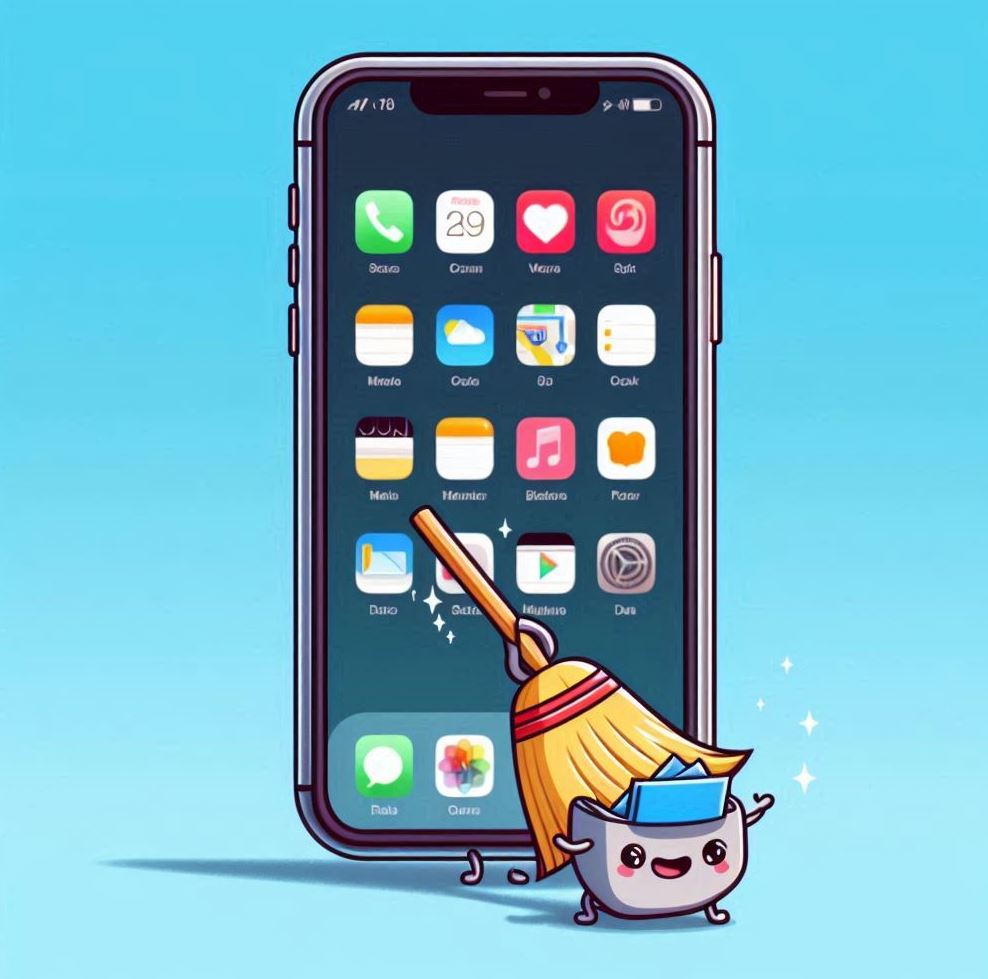
1. Clear Browsing Data
- Go to Settings > Safari and select "Clear History and Website Data." This can free up space by removing temporary files and caches.
2. Delete Unused Apps
- Review your installed apps and delete those you don’t use. Go to Settings > General > iPhone Storage to see which apps are taking up the most space.
3. Clear App Cache
- While iOS doesn’t allow direct cache clearing, you can delete and reinstall apps to free up space. This is especially useful for apps that accumulate a lot of temporary data.
4. Optimize Photo Storage
- Enable the "Optimize Storage" option in Settings > Photos. This will store lower-quality versions of your photos on the device while keeping the originals in iCloud.
5. Review Downloads and Files
- Access the Files app and delete unnecessary downloads. Also, check app folders like WhatsApp to remove multimedia files you no longer need.
6. Use iCloud for Storing Photos and Videos
- If you have an iCloud storage plan, make sure to use it for saving your photos and videos, thereby freeing up local space on your device.
7. Remove Duplicate Files
- With new updates in iOS, you can merge duplicate photos and videos, which can help free up additional space.
8. Reduce Photo and Video Quality
- Go to Settings > Camera and adjust the quality of the photos and videos you take so they occupy less space.
9. Keep Your Device Updated
- Ensure your iPhone is always updated with the latest version of iOS, as this may include improvements in storage management.
10. Transfer Files to a Computer or External Storage
- Consider transferring large photos, videos, or documents to a computer or external storage device to free up space on your iPhone.